RC Timer
Free GPS Race Committee Starting Timer for Android
NEW: RC Timer now works in both portrait and landscape modes.
Overview
Ten years ago I wrote an Android app specifically for race committees. I had been racing my own sailboat for many years, and like every racer I depended on the dedicated volunteers on the committee boat who made those races possible. I wanted to do something to say thank you, and the same holds today.
Race Committee Timer (RC Timer for short) turned out to be more popular with race committees than I expected. One user wrote to me:
The problem was that Android had moved on and RC Timer had not. Eventually Google Play would no longer offer such an old app. For a while I made the APK available on my website so users could sideload it. That kept it going a little longer, but eventually new versions of Android wouldn't allow the old app to be installed at all.
I was surprised to discover that, after ten years, dozens of people were still using RC Timer. That was my motivation for updating it.
Android programming had changed beyond what I was able to deal with, but I discovered that with ChatGPT helping me, updating RC Timer might actually be practical.
The rebuild was harder and took longer than I had hoped, but it worked.
If you used the old RC Timer, the new version should be very familiar. It works essentially the same way. The major change is how starting-sequence files are selected, stored and edited. That part is new—and considerably better.
RC Timer is a GPS-based race committee starting timer.
- Works in portrait or landscape orientation
- Enter start time or time to start
- Enter a repeat interval
- Spoken and/or written countdown announcements
- Timed horns
- Built-in or custom sound files
- Edit and save your own starting sequences
- Signal flag reference
- Designed for outdoor use in full sunlight
- Works without a sim card
- Free to use with no advertising
RC Timer is for Android phones and tablets; there is no iPhone version.
RC Timer is available free on Google Play
Main Screen
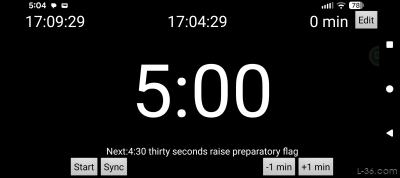
The main screen is shown here set for a five-minute countdown. Press Start/Stop and the timer begins counting down. You can add or subtract a minute, and Sync moves a manually started countdown to the nearest second if you are synchronizing it to another starting signal.
The current GPS time is shown at the upper right. The line below starting with "Next" shows the next event in the sound file, including when it will occur and any message associated with it. Press Edit to set the timer, start time, Sequence, sound file, or other options.
The "5 min" on top is the interval setting. When the timer gets to 0 (race start) it will automatically start a new start sequence in this case at 5:00. If the interval is set to 0, the timer will just keep counting time from start forever. It no longer stops counting at 100 minutes like it did on the old version. You can use this feature even if there are multiple starts by using the edit screen to set the interval to 0 before the last start.
Setting the Timer
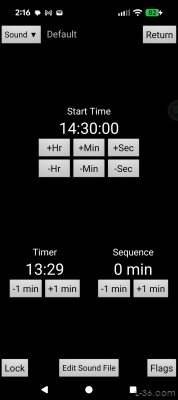
The Edit screen has three groups of controls. Start Time sets an actual starting time, Timer sets a countdown timer, and Sequence sets the interval between successive starts.
Changing Start Time automatically selects Start Time mode. The +Min and -Min buttons also reset the seconds to zero, making it easy to set a start on an even minute. Changing Timer automatically selects Timer mode.
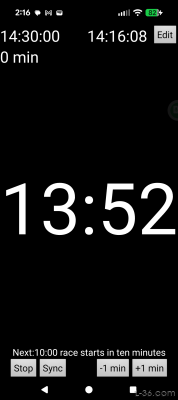
The portrait layout of the main screen is shown counting down to a 14:30 start time. At 10:00 the sound will announce "race starts in ten minutes" as shown on the Next: line.
If a Sequence is set, after each start RC Timer automatically begins counting down to the next one and continues repeating until stopped. Lock prevents accidental changes to the timer and changes to Unlock when active.
Sound selects the sound file or turns sounds and messages on or off. Edit Sound File opens the sound-file editor, and Flags displays the signal-flag reference.
Why GPS?
RC Timer uses GPS time so the race committee and racers using GPS have the same time reference. During the rewrite I considered using the phone's internal clock, but testing showed enough drift to matter during a long sequence. GPS also proved to use very little power on a modern phone—in a two-hour test on my Pixel 10a, GPS consumed less than 1% of the battery. I decided accuracy was more important than eliminating that small power use.
Sound Files
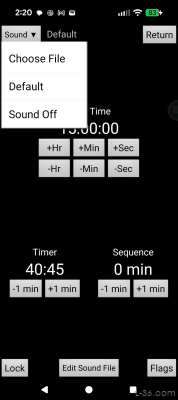
RC Timer uses a sound file to control spoken announcements, displayed messages, and horn signals during the starting sequence. Select Default to use the built-in sound file, Choose File to select your own, or Sound Off to disable horns, speech, and displayed messages. Once a sound file is selected, RC Timer remembers it.
Each line in the file begins with the time at which something should happen. A line containing only a time sounds the built-in horn. You can also say horn instead of leaving the sound field blank. Text following the time is spoken and displayed.
For example, part of the default sound file is:
The 1:00 line sounds the one-minute horn. A line with just a time will also sound a horn. The following lines provide announcements and begin the final countdown.
Normally text is both spoken and displayed. A ! prevents the text from being spoken, while a # prevents it from being displayed. Using both makes the line effectively a comment.
View a complete sound file. There is a default sound file in the app that can be used as a starting point for creating your own sequence.
Editing a Sound File

Press Edit Sound File to open the active sound file in the built-in text editor. The Default file cannot be overwritten, but you can modify it and use Save As to create your own version. A sound file selected with Choose File can be overwritten with Save or saved under a new name with Save As.
RC Timer checks the format of each line before saving, and the saved file automatically becomes the active sound file.
Signal Flags
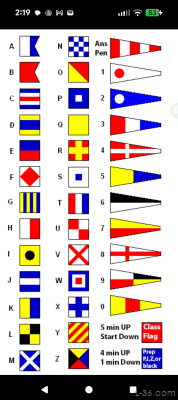
Press Flags for a quick reference to the signal flags and numeral pennants.
NOTICE: Some pages have affiliate links to Amazon. As an Amazon Associate, I earn from qualifying purchases. Please read website Cookie, Privacy, and Disclamers by clicking HERE. To contact me click HERE. For my YouTube page click HERE